Turn your cat’s photos into a desktop pet
In Furever Dock for Mac or Windows, you can use photos of your cat to create a companion that moves around your desktop. Start with one clear photo where you can see your cat’s face and markings.
Choose your photos ↓
Which photos should I use?
Choose 1–8 photos of the same cat, up to 8 MiB each. A clear front view makes a good first photo. Side views can help show the coat pattern. If the app asks you to replace a photo, pick one where your cat is easier to see.
JPG and PNG work well on either platform. WebP, HEIC and HEIF are also supported. On Windows, a HEIC file may upload without showing a preview.
How do I create my desktop cat?
- Open the pet invitation. On first launch, click “SAY HELLO!” on the welcome screen. If you already use Furever Dock, click “Bring your own pet here” in the empty pet slot.
- Choose “Invite my pet.” On the “Who’s joining you today?” screen, select the option to bring your own pet.
- Fill in “Move-in Registration.” Enter your cat’s name, age and gender. Under “Add their photos,” select the pictures you prepared.
- Click “Make It Official.” Follow the account and credit prompts. Your cat’s card on the home screen shows its progress.
Where does my cat appear?
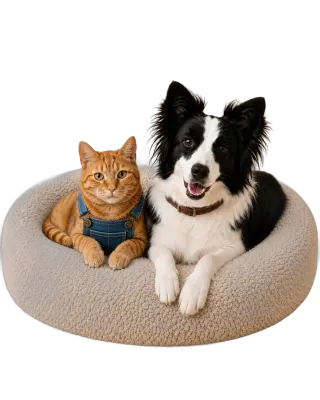
When your pet is ready, it appears on your desktop automatically if you have no active pet. Already have a companion on screen? Select the new cat’s card on the home screen. The active pet is marked “Current.”
Does creating a pet cost anything?
You can adopt an available pet for free. Creating a pet from your own photos uses a creation credit. If you see “1st friend is free” during setup, follow that offer. Check what the app shows for your account before confirming.
 Download for Windows
 Download for MacOS